Canva's Magic Studio bundles AI design, copywriting, image generation, photo editing, and format conversion into the world's most-used design platform — no skills required.
Canva was founded in 2013 in Sydney by Melanie Perkins, Cliff Obrecht, and Cameron Adams. The founding thesis was simple and radical: professional design shouldn’t require a design degree. Early Canva was drag-and-drop templates, stock photos, and a font picker. It was not a design tool for designers — it was a design tool for everyone else, and that distinction turned out to be worth about $40 billion.
By 2022, Canva had over 100 million monthly users across 190 countries. The platform had quietly accumulated a library of over 3.6 million premium templates, a suite of collaboration features, and the beginnings of a content production workflow that small marketing teams could actually run end-to-end without agency help.
The AI pivot came at Canva’s 10th anniversary event in October 2023, when the company launched Magic Studio — its name for the collection of AI tools now embedded across the platform. Magic Write had shipped in late 2022 (powered by OpenAI). Dream Lab (text-to-image generation), Magic Design, and the full suite of photo editing AI tools arrived through 2023 and into 2024. Magic Studio is not a separate app or mode — it’s AI woven into every corner of the canvas you already use.
In March 2024, Canva acquired Affinity — the maker of Affinity Designer, Photo, and Publisher, the closest thing the design world had to a credible Adobe alternative at affordable perpetual pricing. The acquisition made a statement: Canva was no longer content to own the non-designer market. It wanted professional designers too. The Affinity apps remain available as standalone products, but the integration roadmap signals that Canva’s long-term goal is a single platform spanning drag-and-drop simplicity to professional-grade vector and photo editing.
That context matters when you evaluate Canva AI in 2026. This is not a startup trying to build an AI design tool from scratch. It’s the world’s most-used visual design platform layering AI capabilities onto a workflow that a hundred million people already know. The learning curve for Canva AI is, in most cases, essentially zero.
What Canva AI actually is
The marketing name is Magic Studio. In practice it’s a collection of seven distinct AI capabilities, each accessible from inside the Canva editor without switching tabs, installing plugins, or logging into a separate service:
Magic Design — describe what you want, get a complete branded template
Magic Write — AI copywriting with brand voice training
Dream Lab — text-to-image and image-to-image generation
Magic Switch — resize, translate, and repurpose any design in one click
Background Remover — one-click subject isolation, unlimited on Pro
What unifies all of these is the delivery mechanism: they appear as buttons, menus, and sidebars inside the existing Canva editor. You don’t prompt your way into a blank canvas. You start with a template, a photo, or a blank design — and the AI enhances, transforms, or generates within that context. This is fundamentally different from tools like Midjourney or Adobe Firefly, where you’re always starting from a prompt. Canva AI is contextual. It works with what’s already on your canvas.
First five minutes in action
You don’t download anything. Open Canva in a browser, click Create a design, pick a format (Instagram post, presentation, business card, whatever), and you’re in. On the left sidebar, a toolbar item labeled Magic lights up the AI menu. On the top bar, Magic Design is one click away. This is the least intimidating entry point to AI-powered design we’ve tested.
The genuinely surprising moment happens when you drag a photo onto the canvas and click Edit photo. A row of AI tools appears below the image: Background Remover, Magic Eraser, Magic Grab, Magic Edit, Magic Expand. You click Background Remover — the subject is isolated in under two seconds, no masking required. You click Magic Eraser, draw a rough circle over a bystander in the background, and they’re gone. The fill is imperfect at 100% zoom (soft edges, occasional artifacts) but at social-media sizes it’s invisible. This used to require Photoshop. Now it takes thirty seconds in a browser.
The moment that catches non-designers most off guard is Magic Resize. You’ve built a landscape Facebook post. You need it in Instagram portrait, square, and Stories formats. You click Magic Switch → Resize, select all four formats at once, and Canva generates each one in under ten seconds, recomposing text and elements automatically. Not perfectly — you’ll often tweak headline placement — but the 80% is done in a fraction of the time.
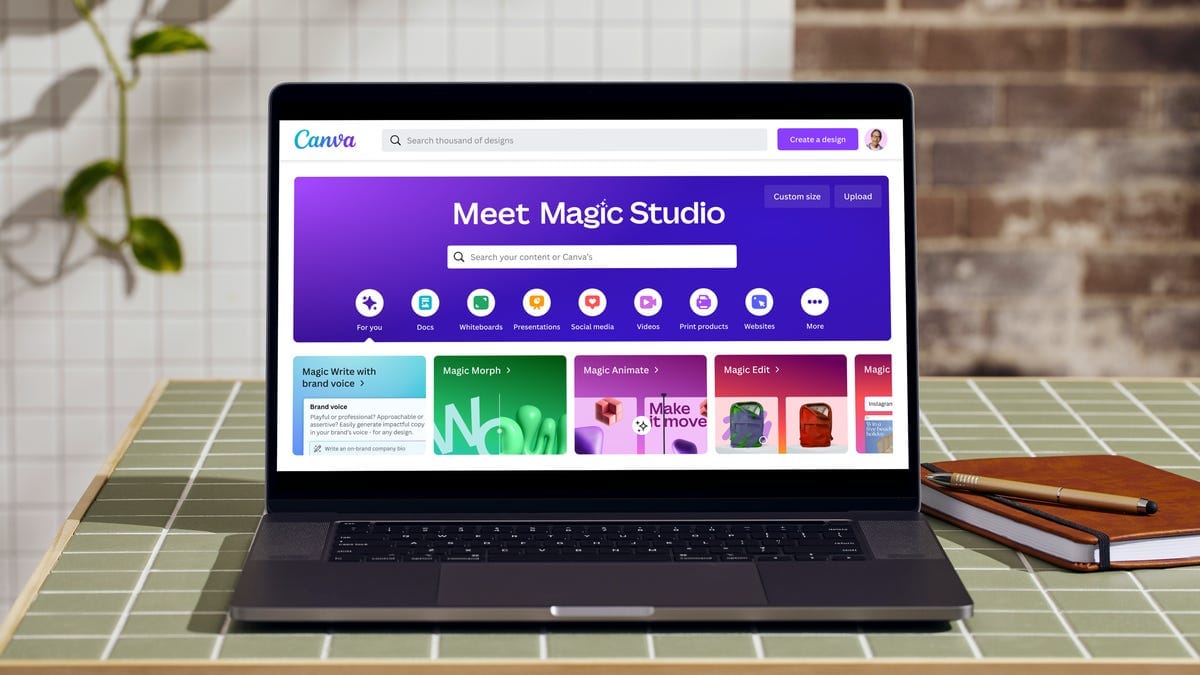
canva-ai · canva-magic.png
fig · Canva Magic Studio · source: cnet.com
Magic Design: templates that start from your brief
Magic Design is the top-of-funnel AI feature: describe what you’re making, and Canva generates a set of full-layout template options that match your brief and your Brand Kit. Type “product launch announcement for a sustainable skincare brand, warm earthy tones” and you get eight complete layout options — headline, body copy placeholder, image zones, color palette — all in your brand fonts and colors if you’ve set up a Brand Kit.
The output quality is template-grade, not design-school-grade. You’re getting smart recombinations of Canva’s existing 3.6 million template library, guided by your brief. The results are consistently usable, occasionally genuinely good, and never as original as something a skilled designer would create from scratch. That’s fine. The target user isn’t a skilled designer. For someone who would otherwise spend 45 minutes resizing and reformatting a template by hand, Magic Design is a meaningful acceleration.
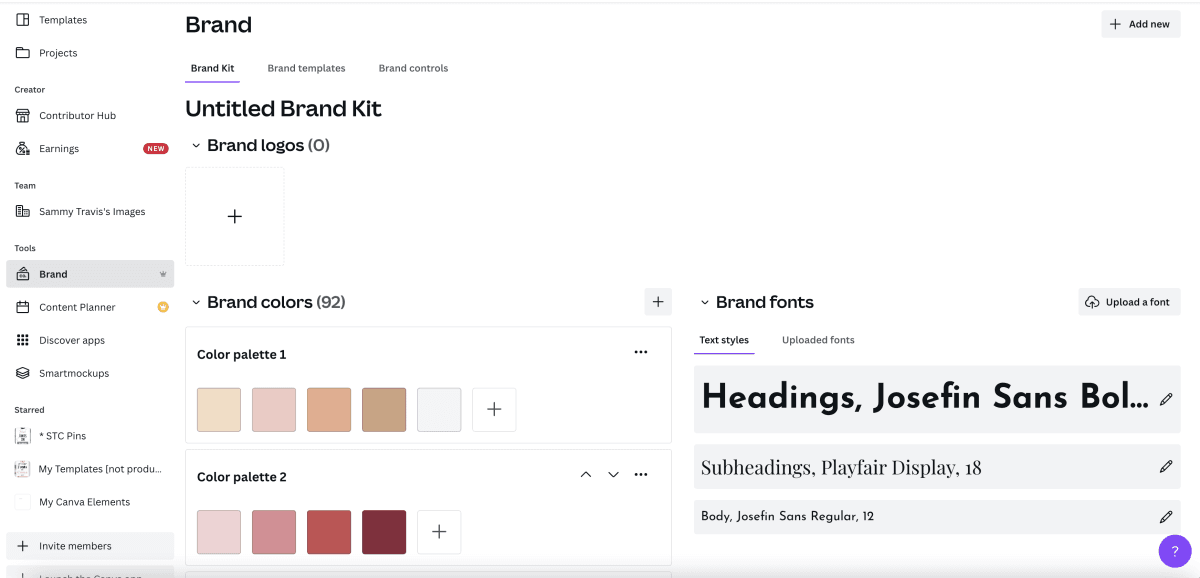
One important limitation: Magic Design works best when your Brand Kit is fully set up — logo, colors, fonts. Without that, the outputs are generic. With it, they’re on-brand out of the box. Setting up a Brand Kit is a one-time 20-minute investment that pays dividends every time you use any Magic Studio feature.
TIP · set up Brand Kit before anything else
Upload your logo, add your hex colors, set your primary and secondary fonts. Every Magic Studio tool reads from Brand Kit automatically. Magic Write uses it for tone. Magic Design uses it for layouts. Magic Switch uses it when resizing. It’s the single biggest quality lever in Canva AI — and most users skip it.
Magic Write and Brand Voice: copy that sounds like you
Magic Write is Canva’s AI copywriter, powered by OpenAI and embedded in every text element on the canvas. Select any text block, right-click, and you get options: generate from prompt, expand, shorten, rephrase, change tone, translate. You can also open Magic Write as a standalone side panel and draft longer content — blog intros, slide outlines, social captions — before placing it on the design.
The quality is on par with what you’d expect from a GPT-4-class model with a short context window. It’s fast, fluent, and contextually aware of the content already on your canvas (it can see your headline and brand name when writing your caption). Where it falls short is depth. Dediated writing tools like Jasper or Sudowrite offer more control — custom personas, fine-tuned brand voice matching, long-form consistency across multi-section documents. Magic Write is excellent for the kind of copy that lives inside a design: subject lines, taglines, slide bullet points, product descriptions of 50–150 words. For anything longer or more nuanced, you’ll want a dedicated tool and then paste the output into Canva.
Brand Voice is the feature that changes this calculus for teams. Available on Pro and Teams plans, Brand Voice lets you define your company’s tone — formal or casual, playful or authoritative, the words you never use, the phrases that define you. Magic Write then writes in that voice without requiring it in every prompt. For a small marketing team managing social, ads, and email simultaneously, Brand Voice is the difference between copy that sounds like a generic AI and copy that sounds like your company.
Dream Lab: text-to-image inside your design workflow
Dream Lab is Canva’s text-to-image generator, powered by Leonardo.ai under the hood (as of 2026). You access it from the Apps panel inside the editor, type a prompt, choose a style (Photorealistic, Anime, Digital art, etc.), and generate a set of images that appear directly in your Canva library, ready to drag onto your design.
The outputs are competent but not cutting-edge. Compared to the state of Midjourney v6 or Adobe Firefly’s latest models, Dream Lab produces images that are slightly softer, occasionally less coherent at fine detail, and less controllable in terms of style precision. What it wins on is context: generated images live immediately in your Canva library, brand-colored, sized for your current design. You don’t export from one app and import into another. The workflow stays in one tab.
For social media assets — lifestyle imagery, abstract backgrounds, product mockup scenes — Dream Lab is genuinely useful. For print-quality work, editorial illustration, or any output that needs to look like it was shot by a photographer, reach for a dedicated image model. The practical ceiling for Dream Lab output is around 1080px display-use, which covers the vast majority of Canva’s core use cases.
The credit constraint is the biggest practical issue. Dream Lab consumes roughly 20–30 credits per generation batch (4 images). At 500 credits per month on Pro, you’re looking at about 16–25 batches before you’re out. A social team running a campaign across platforms can burn through this in a week. There’s no option to buy more credits a la carte — you upgrade to Teams for higher allowances.
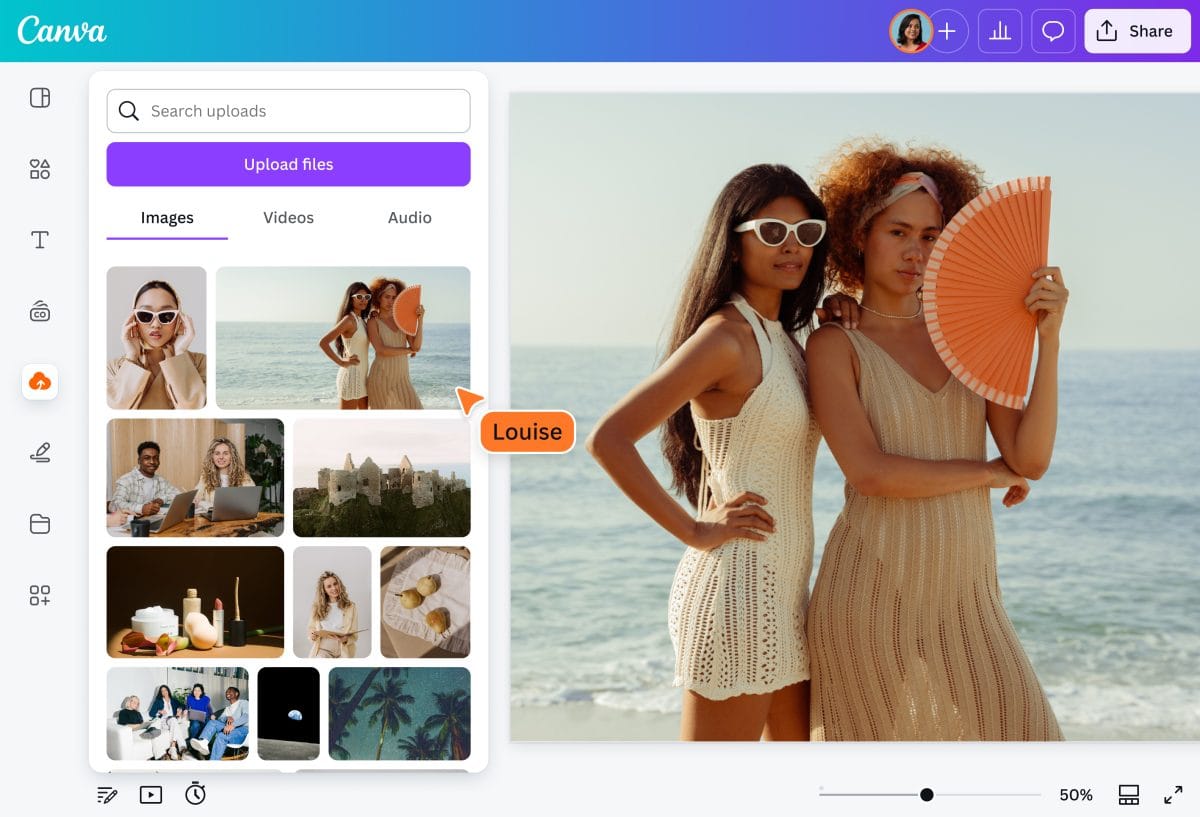
canva-ai · canva-media.png
fig · Magic Media generation · source: canva.com
Magic Edit, Magic Eraser, Magic Grab, and Magic Expand
These four tools cover the “I need to fix a photo without Photoshop” use case that previously sent non-designers to a freelancer or a 45-minute tutorial:
Magic Eraser removes unwanted objects from photos. You brush over the area roughly — no precise masking — and Canva’s model fills in the background. Quality is high for simple backgrounds (sky, grass, plain wall), uneven for complex textures (brick, foliage, crowds). For social media use, it’s reliable enough that you’ll reach for it as a reflex. For print use or any context where the fill will be scrutinized at large size, review carefully.
Magic Grab separates the main subject of a photo and makes it independently moveable on the canvas — resize it, reposition it, change the background behind it. This is the feature that most dramatically expands what a non-designer can do with a stock photo. You can take a product on a white background, move it to the left of frame, and generate a new background on the right — in about sixty seconds.
Magic Edit goes further: brush a selection over part of the image and type what you want to replace it with. Swap a product’s color, change what’s on a table, add a seasonal element to a scene. The results are variable — the model sometimes struggles with perspective, lighting consistency, and fine text in the scene. But for creative exploration and rough mockups, it’s remarkably capable.
Magic Expand outpaints beyond the original image borders. Useful when you have a portrait-orientation photo but need landscape — expand the sides, Canva generates plausible content to fill the new space. Edges sometimes betray the seam, especially with sharp architectural lines, but for organic scenes (outdoor photography, food, lifestyle) it works well enough to save a stock photo search.
Magic Switch: resize, translate, repurpose
Magic Switch might be the most underrated tool in Magic Studio. The core function is format conversion: you’ve designed something for one channel, you need it for three others. Instagram post to Stories, Facebook banner to LinkedIn cover, presentation to social quote cards. Select your design, click Magic Switch, choose target formats, and Canva generates adapted versions — recomposing elements, adjusting font sizes, and reflowing text to fit.
The recomposition is not always perfect. For simple designs (hero image, headline, CTA), Magic Switch nails it. For complex multi-element layouts, the AI occasionally misplaces text or clips an image awkwardly. Budget a few minutes for cleanup. The time saved vs. manual resizing is still substantial — typically 70–80% of the layout work is done automatically.
The Translate function within Magic Switch is quietly powerful for any team operating across languages. Select your design, pick a target language from 100+ options, and Canva translates all text in place while preserving the layout. Type expansion (common when translating English to German, Spanish, or Japanese) is handled by auto-shrinking or reflowing text — not always gracefully, but it’s a usable first draft in the target language without touching a translation service.
The Transform function converts designs to different content formats: a presentation becomes a blog post outline, a social post becomes a document, a slide deck becomes a summary. The outputs are light on depth but useful as scaffolding — the sort of thing you’d spend twenty minutes on in a text editor but can rough-draft in ninety seconds here.
Three real workflows, end-to-end
case-study #01 · social media campaign for a product launch
Launch week content: 12 assets across 4 formats in one afternoon
The brief: a skincare brand launching a new serum. Needed Instagram posts (feed + Stories), a Facebook banner, and email header. Brand Kit was pre-loaded with hex colors, logo, and two brand fonts.
Step one: Magic Design. Typed “product launch for a botanical face serum, deep green and ivory, premium but accessible.” Got eight layouts. Picked two. Swapped the placeholder product photo for the actual product shot using drag-and-drop.
Step two: Dream Lab for lifestyle background imagery. Prompted “botanical herbs and glass dropper bottles, soft natural light, macro photography.” Generated sixteen images in two batches. Selected four for use across the campaign.
Step three: Magic Write for captions and headline variants. Selected the headline text block, opened Magic Write, typed “product benefit: hydrates for 72 hours, botanical formula, luxury feel.” Got five headline options. Picked two, tweaked one word each.
Step four: Magic Switch to generate all four format variants. Selected the base Instagram post, ran Magic Switch to Stories, Facebook banner, and email header. Adjusted two layouts where text had been clipped. Done.
// wall-clock: 3.5 hours for 12 finished assets · without Canva AI: 1-2 days minimum for a non-designer, or a design agency invoice
case-study #02 · educator building a multilingual course deck
30-slide presentation in English + Spanish + French
role: university instructor, no design background · scope: 90 slides total · tools: Magic Design + Magic Switch Translate
The scenario: a professor building a course presentation for three language cohorts. Previously this meant building in PowerPoint, exporting, hiring a translator, reformatting three times.
Magic Design handled the initial 30-slide layout from a structured outline — the instructor typed section headings and key bullet points as a prompt, and Canva built a consistent slide template across all sections. Cleanup took about 20 minutes: adjusting one awkward image placement and changing two font sizes.
Magic Switch Translate ran on the completed English deck and produced the Spanish version in about four minutes, 30 slides. French followed. Both needed light editing (seven text boxes across both decks where expansion had overflowed). A translator reviewed for accuracy — the AI output was ~90% correct on factual academic content, with occasional colloquial awkwardness in the Spanish idiom.
Total: one professional-looking slide deck template, three language versions, produced by a single non-designer in a single afternoon. The translation alone would have cost $300–500 from a professional service.
// wall-clock: 5 hours for 90 slides in 3 languages · professional service equivalent: $500–800 and 5 business days
case-study #03 · small business owner fixing product photos
Product photography cleanup: 20 SKUs, no studio, no Photoshop
The scenario: an online ceramics seller photographed 20 products on a kitchen table with natural light. The backgrounds are inconsistent — some have a corner of the stove visible, one has a hand intruding, several are too tight and cut off part of the piece.
Background Remover handled all 20 isolations in about eight minutes, working through them in a batch. Results: 18 clean isolations, two with edge artifacts (a matte-finish ceramic where the silhouette detection softened the rim slightly). Both were corrected with two minutes of manual eraser work.
Magic Eraser removed the hand from one image and a stove corner from three others. Two of the four fills were seamless at web resolution. Two had a faint smudging artifact visible at 100% zoom but invisible in a product listing thumbnail. Acceptable.
Magic Expand solved the cropping problem on six images — expanded each 20% outward and let Canva fill the edges with plausible background texture. Five were usable with no cleanup. One required ten seconds of touch-up where the expansion had introduced a visible seam along a straight tabletop edge.
// wall-clock: 45 minutes for 20 production-ready product images · previous workflow: half-day in Photoshop or $8–12/image from a retoucher
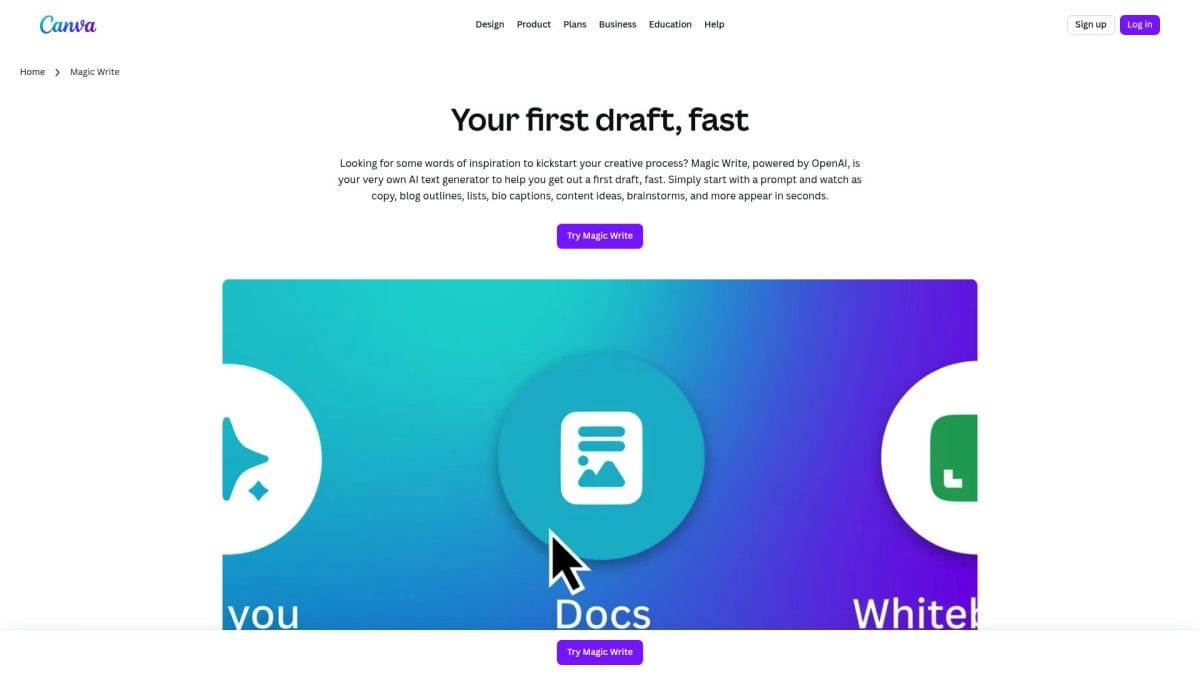
canva-ai · canva-write.png
fig · Magic Write & the AI assistant · source: secretdigitaltools.com
Magic credits — the honest truth
The free tier gives you approximately 50 AI credits per month. That sounds like a starter allowance but in practice it’s demonstration-level access. A single Dream Lab batch (4 images) costs around 20–30 credits. Run two image generation sessions and you’re close to empty. Magic Eraser, Magic Expand, and Background Remover on Free are capped and count against the same pool.
Pro at $15/mo gives 500 credits. For a light-to-moderate user — someone running one social campaign per week, generating a handful of images, and editing a few photos — 500 credits is usually sufficient. For a social media manager running daily content across multiple clients, or anyone doing extensive Dream Lab generation, 500 can run out in 10–14 days.
WARNING · no a-la-carte top-ups
You cannot buy extra credits when you exhaust your monthly allowance. Your only option is to upgrade from Pro to Teams. There is no “500 extra credits for $5” option. If you’re a heavy user, factor the Teams plan cost ($10/user/month annual, 3-user minimum = $300/year) into your comparison.
The credit system creates an asymmetry between Canva’s pricing pitch and its AI pitch. The platform sells itself as unlimited and accessible, but the AI features operate on a measured economy. The tools that don’t burn credits — Magic Switch resize, Brand Kit application, Magic Write text edits, template generation — are effectively unlimited. The tools that generate net-new pixels (Dream Lab, Magic Edit, Magic Expand) are rationed. Once you understand this distinction, it’s easier to plan usage accordingly.
For teams thinking about ROI: at $15/mo Pro vs. $10/user/month Teams on annual billing for a 3-person marketing team, the breakpoint is whether your three users collectively consume more than ~1,500 credits per month. If you’re primarily using Canva for layout work with occasional AI enhancements, Pro is fine per person. If AI generation is central to your daily workflow, Teams math works out better.
Canva AI vs Adobe Firefly
a/canva-ai b/adobe-firefly
Adobe Firefly is Adobe’s generative AI suite — text-to-image, Generative Fill in Photoshop, Generative Remove, text effects, and vector generation in Illustrator. It’s aimed at professional creatives who already live in Adobe’s ecosystem. Firefly’s image model is trained exclusively on licensed and public-domain content, which matters for commercial use in regulated industries.
canva-ai wins at
zero learning curve — same UI you already know
all-in-one: design + copy + image + resize in one tab
price — $15/mo vs. $60+/mo for Adobe CC
non-designers can be productive in under an hour
Magic Switch resize/translate is unique
Brand Kit integration across all AI outputs
adobe firefly wins at
raw image quality — sharper, more controllable
professional-grade editing tools (layers, masks)
trained on licensed content only — cleaner IP story
Generative Fill in Photoshop is unmatched precision
print-ready output at any resolution
integrates with full pro creative stack
Verdict: If you already pay for Adobe Creative Cloud, Firefly is the better image AI — better model, better tools, professional precision. If you don’t, Canva AI at $15/mo does 80% of what most non-designers actually need at 25% of the cost. They solve different problems for different audiences. The Affinity acquisition signals Canva wants to close that gap over time.
Pricing in real terms
Canva’s pricing in 2026 follows a clean four-tier model:
Free — $0/month. 5 GB storage, ~50 AI credits/month, 1 Brand Kit, limited templates. Useful for evaluation; insufficient for regular professional use.
Pro — $15/month (billed monthly) or ~$120/year (~$10/month). 100 GB storage, 500 AI credits/month, 5 Brand Kits, unlimited Background Remover, all Magic Studio tools, priority feature access. The plan most individuals should buy.
Teams — $10/user/month billed annually (3-user minimum, $300/year). 500 GB storage, higher AI credit pools, 100 Brand Kits, shared template libraries, real-time collaboration controls. Best for small agencies and in-house marketing teams.
Enterprise — Custom pricing, 100-seat minimum. SSO, advanced admin, dedicated support, 1 TB storage, 1,000 Brand Kits. For large organizations with compliance and governance needs.
The honest comparison point for Canva Pro is not Adobe Creative Cloud ($60/mo+). It’s what you’d pay for the individual tools it replaces: a photo editing tool, a basic copywriting assistant, an image generator, and a template design tool — which quickly adds up to $40–80/month if you bought them separately. At $15/mo, Canva Pro is competitively priced even before you account for the template library and collaboration features.
The education and nonprofit tiers deserve mention: verified educators and qualifying nonprofits can access Canva for Teams features for free. This is not a scaled-down version — it’s the full Pro feature set. For school districts, nonprofits, and NGOs, this makes Canva AI essentially free at scale.
canva-ai · canva-pricing.png
fig · Plans and pricing · source: dailycreativeco.com
Who Canva AI is for (and who it isn’t)
Use it if you are
A small business owner running your own social media without a design team
A social media manager or content creator publishing across multiple platforms daily
A marketer who needs branded assets fast without a designer bottleneck
An educator building slide decks, worksheets, or multilingual course materials
A startup doing its own brand collateral in the early stages
A non-designer who needs to produce professional-looking output, not pixel-perfect output
Think twice if you are
A professional designer who needs layers, blend modes, non-destructive editing, and precise color management
A print production team — Canva’s AI output isn’t print-ready at large format without careful review
An illustrator or artist who needs fine control over AI image generation parameters
A heavy AI image generator — 500 credits per month will feel restrictive quickly
+ all-in-one + zero curve + brand-kit + magic-switch
The most accessible AI design suite in the world. Breadth over depth.
Canva AI earns its score by doing something genuinely hard: making AI-powered design, copy, image generation, photo editing, and format conversion feel like a single coherent workflow — for users who have never opened Photoshop, never prompted an image model, and never written a line of CSS. The price is right. The learning curve is essentially absent. The breadth of Magic Studio is unmatched at this price point.
The ceiling is real. Dream Lab’s image quality doesn’t match Midjourney or Firefly. Magic Write doesn’t match Jasper for long-form copy. The 500-credit monthly cap creates friction for heavy AI users. And for anyone who needs professional-grade precision — in image editing, type control, or print output — Canva AI is not the answer. But for the hundred million people who don’t need that precision and just need to ship good-looking content fast, this is the tool.
// facts checked 2026-06-02
FAQ
Is Canva AI actually useful or just a gimmick?
For non-designers: genuinely useful. Background Remover, Magic Eraser, Magic Switch resize, and Magic Write deliver real time savings in everyday design tasks. Dream Lab is less impressive relative to dedicated image generators but saves the context-switch. For professional designers: the AI tools are too constrained for serious production work — they’ll feel shallow within minutes.
What’s the catch with the free tier?
About 50 AI credits per month. That’s two Dream Lab sessions, or ten or so Magic Eraser uses, or a handful of Magic Expand operations. It’s enough to evaluate the tools, not enough to use them in a real workflow. The free tier is a trial; Pro is the usable product.
Can I use Canva AI output commercially?
Yes. Canva’s Terms of Service grant commercial use rights to designs created with the platform, including AI-generated elements like Dream Lab images and Magic Write copy, on paid plans. On the Free plan, some assets are restricted to non-commercial use. Always check the individual asset license for stock photos sourced through Canva’s content library.
What does Dream Lab actually use under the hood?
As of 2026, Dream Lab is powered by Leonardo.ai’s image models. Canva has not disclosed the full model stack publicly. The output characteristics — style variety, prompt adherence, resolution ceiling — are consistent with Leonardo’s Diffusion XL-based pipeline. Canva has not confirmed whether it trains on user-generated content.
How does Magic Write compare to ChatGPT?
Magic Write is effectively a context-aware ChatGPT wrapper embedded in your design. For copy that lives inside a visual — headlines, taglines, slide bullets, social captions — it’s more convenient than ChatGPT because it sees your canvas. For anything requiring structured long-form writing, research, or nuanced editing, ChatGPT or a dedicated writing tool is meaningfully better.
Does Canva AI work for video?
Magic Media includes a text-to-video feature that generates short clips from a prompt. The output quality in 2026 is adequate for social media fills and background loops — similar to Pika or Luma’s earlier generations. It’s not production video. For serious video work, Runway, Kling, or Sora are the right tools. For short-form social filler content, it works.
What happened with the Affinity acquisition?
Canva acquired Affinity (Designer, Photo, Publisher) in March 2024 for a reported several hundred million pounds. The Affinity apps remain separate products with perpetual licensing. The acquisition signals Canva’s ambition to serve professional designers, not just non-designers. Full integration between Canva and Affinity is in progress — expect deeper workflows between the platforms over 2026–2027.
Can I use my own brand fonts and colors?
Yes — this is the Brand Kit feature. Upload custom fonts (Pro and above), set brand hex codes, upload your logo. Brand Kit is read by Magic Design, Magic Write (for brand voice), and Magic Switch. It’s one of the most useful features in Canva and the first thing you should set up before using any AI tool.
Is there an API for Canva AI?
Canva has a Connect API for integrations (publishing to social platforms, accessing design assets programmatically), but the AI/Magic Studio features are not exposed via a public API as of June 2026. Access is exclusively through the Canva web interface.